

Revitalizing a sluggish desktop computer or older laptop is often as simple as replacing a mechanical hard drive with a solid state drive. Modern operating systems demand rapid file access, which traditional spinning platters can no longer sustain effectively. Installing one of the Best SATA SSDs provides an immediate boost to boot times, system responsiveness, and general application loading speeds.
In September 2026, storage technology continues to balance budget-friendly pricing with proven reliability across various capacity tiers. We evaluated 7 leading drives from trusted names like Kingston, PNY, Patriot Memory and more to determine which options deliver the greatest endurance and real-world value. Exploring our comprehensive hardware shopping guides will help you navigate compatibility requirements before making an upgrade.
Many shoppers mistakenly assume that all 2.5-inch solid state drives offer identical sustained speeds and lifespan metrics. In reality, differences in flash memory architecture, DRAM caching, and controller firmware create substantial performance gaps during sustained file transfers. This detailed guide highlights the critical features you must check so you invest in storage that lasts.


Sequential Read and Write Speeds
Sequential transfer rates indicate how quickly a drive reads or writes large, contiguous blocks of data like video files or installer archives. The theoretical bandwidth ceiling for the SATA III interface is capped at roughly 600 megabytes per second due to bus protocol overhead. Most high-performance drives achieve peak read rates near 560 MB/s and write speeds close to 530 MB/s.
When evaluating drives, compare sustained write speeds against peak burst figures advertised on the packaging. Entry-level models frequently hit peak speeds only during short bursts before dropping when internal buffers fill up. Premium drives maintain higher transfer velocity even when shifting tens of gigabytes simultaneously.
A practical rule of thumb is to check whether the drive promises at least 500 MB/s sequential read and 450 MB/s sequential write performance. Anything below these thresholds indicates dated controller hardware that will struggle under modern multitasking workloads. Ensuring your drive operates near the SATA bus limit guarantees you extract maximum performance from older motherboards.
DRAM Cache vs. DRAM-less Architecture
Dedicated DRAM on an SSD acts as a rapid lookup table for data mapping and file allocation tables. Drives equipped with onboard DRAM can instantly locate file sectors without scanning the primary NAND flash cells. This dedicated memory significantly accelerates random read and write operations during daily operating system tasks.
In contrast, DRAM-less drives rely on smaller internal SRAM buffers or allocate a slice of system memory through host memory buffering. While DRAM-less architecture reduces manufacturing costs and retail prices, it can cause stuttering during sustained write bursts. For primary boot drives, choosing a model with onboard DRAM is highly recommended for consistent responsiveness.
If you are building a secondary storage array or an external backup enclosure, a DRAM-less drive offers exceptional value without noticeable penalty. For secondary game storage or media libraries, file lookups occur sequentially, minimizing the need for rapid address translation. Balancing your budget between DRAM and pure storage volume ensures you spend money where it matters most.
Storage Capacity and Use-Case Planning
Choosing the correct storage capacity prevents premature drive exhaustion and extends the physical lifespan of flash memory cells. Drive options typically range from 256GB entry capacities up to massive 2TB or 4TB units suitable for vast archives. Modern operating systems and office software alone can easily consume over 60GB of space before adding personal files.
For general web browsing and lightweight productivity, a 480GB or 500GB drive provides an ideal balance of cost and utility. Power users, gamers, and content creators should target 1TB or 2TB drives to accommodate large game installations and high-resolution video footage. Purchasing higher capacity also provides larger spare areas for background wear leveling processes.
A solid rule is to purchase double the capacity your current files occupy to accommodate future updates and temporary system cache files. Solid state storage requires approximately fifteen to twenty percent free headroom to maintain optimal write speeds and prevent write amplification. Reviewing our general technology category articles can help you plan your system storage layout effectively.
3D NAND Flash Memory Types
Flash memory architecture directly dictates how many data bits reside within each physical microscopic memory cell. Triple-Level Cell (TLC) memory stores three bits per cell and currently represents the gold standard for mainstream reliability and speed. Quad-Level Cell (QLC) memory stores four bits per cell, offering denser capacities at lower prices but with reduced write endurance.
The microscopic complexity of writing sixteen distinct voltage states in QLC makes sustained write speeds drop drastically once the cache fills. TLC drives maintain significantly higher sustained transfer rates and survive far more program-erase cycles over their lifespan. When shopping for primary system drives, verifying TLC 3D NAND composition ensures dependable multi-year performance.
For deep archival purposes or secondary game drives where reading happens far more often than writing, QLC drives remain a cost-effective option. However, if your daily workflow involves frequent video rendering or heavy file decompression, TLC memory remains the superior choice. Checking the manufacturer specification sheet for 3D TLC NAND guarantees you receive balanced performance and endurance.
| Feature Spec | Entry-Level SATA SSD | Mainstream SATA SSD | Performance SATA SSD |
|---|---|---|---|
| Sequential Read | 450 – 500 MB/s | 520 – 550 MB/s | 550 – 560 MB/s |
| Sequential Write | 350 – 450 MB/s | 480 – 500 MB/s | 520 – 530 MB/s |
| Cache Architecture | DRAM-less (SRAM/HMB) | DRAM-less or Small Buffer | Dedicated DDR4 DRAM |
| NAND Flash Type | 3D QLC / TLC | 3D TLC NAND | Premium 3D TLC V-NAND |
| Optimal Role | Basic Web & Office PC | Everyday Laptop Upgrade | Heavy Workstation & OS Boot |
Terabytes Written and Drive Endurance
The Terabytes Written rating measures the cumulative volume of data you can write to a drive before cell degradation occurs. Manufacturers calculate this metric using standardized industry testing workloads that simulate rigorous real-world write cycles. A higher TBW score reflects sturdier flash memory and more resilient internal wear-leveling algorithms.
Typical 500GB consumer drives offer endurance ratings between 150 TBW and 300 TBW, while 1TB models often exceed 600 TBW. An average daily user writing 20GB of data per day would take over forty years to exhaust a standard 300 TBW drive. Gamers and heavy downloaders benefit from higher endurance ratings that accommodate frequent game updates and temporary file caches.
To evaluate a drive, divide its advertised TBW by its capacity to determine endurance density per gigabyte. Drives offering at least 300 TBW per terabyte of capacity provide outstanding longevity for intensive productivity workstations. Selecting a drive with verified high endurance prevents unexpected drive lockouts and catastrophic data loss down the road.
Controller Hardware and Thermal Throttling
The SSD controller functions as the central processor of the drive, directing data flow, encryption algorithms, and error correction. High-grade multi-channel controllers distribute data packets evenly across multiple NAND dies to maximize bus saturation. Efficient controller designs also consume less electrical power, which helps laptop batteries last longer between charges.
Thermal management is another vital responsibility managed by modern controller firmware to protect internal memory components. When temperatures rise during heavy continuous file transfers, intelligent thermal throttling slightly adjusts transfer speeds to prevent overheating. Quality drives maintain safe operating temperatures within enclosed laptop chassis without suffering steep performance drops.
Premium controllers from industry leaders like Samsung, Silicon Motion, and Phison feature built-in hardware sensors and thermal safeguards. Always look for drives that explicitly list active thermal monitoring and end-to-end data path protection in their hardware specifications. Robust controller design ensures stable operation during hot summer days and tight enclosure installations.
Form Factor and Physical Compatibility
Standard internal SATA solid state drives utilize the classic 2.5-inch form factor designed to replace older spinning mechanical drives. Most modern models feature an ultra-slim 7mm drive height that fits effortlessly into thin notebooks and desktop drive caddies. Older laptop models designed around 9.5mm mechanical drives may require a simple adhesive spacer for a secure fit.
SATA drives connect via standard 7-pin data and 15-pin power cables inside desktop cases, making them universal across motherboard generations. They also offer full backward compatibility with SATA II ports, running reliably at reduced interface speeds on vintage computers. This broad physical compatibility makes SATA SSDs the most versatile upgrade available for legacy systems.
Before purchasing, open your computer chassis or check its maintenance manual to confirm available 2.5-inch drive mounting bays. Desktop users should also verify that their power supply unit has an available SATA power connector along with a spare motherboard SATA port. For homeowners interested in broader tech setups, our home and living guides offer helpful tips on home office organization.
Advanced Features: ECC, TRIM, and SMART Monitoring
Advanced firmware features ensure that stored files remain intact and accessible over many years of continuous daily operation. Error Correction Code (ECC) algorithms automatically detect and repair minor bit-flip corruptions before data reaches the host operating system. Self-Monitoring, Analysis, and Reporting Technology (SMART) tracks vital health metrics, giving users early warnings before hardware failures occur.
The TRIM command enables the operating system to notify the SSD which data blocks are no longer considered in use. This active background communication allows the drive controller to wipe stale memory pages ahead of time, maintaining swift write performance. Without functional TRIM support, an SSD gradually slows down as dirty blocks accumulate across its memory cells.
Verify that your prospective drive lists native command queuing, active garbage collection, and wear-leveling support. These autonomous background maintenance tools run silently during idle periods to keep memory cells balanced and responsive. Choosing a drive with complete protocol support guarantees smooth operation across Windows, Linux, and macOS platforms.
Manufacturer Warranty and Software Ecosystem
A manufacturer warranty provides crucial peace of mind and reflects the brand confidence in component build quality. Reputable SSD manufacturers offer three-year to five-year limited warranty coverage backed by responsive customer service channels. The warranty typically remains valid until either the designated time elapsed or the maximum TBW threshold is crossed.
Dedicated companion software suites significantly simplify drive migration, firmware updates, and real-time health monitoring. Applications like Samsung Magician or Crucial Storage Executive allow users to clone old hard drives seamlessly without purchasing third-party software. These tools also allow you to allocate custom over-provisioning space to prolong drive lifespan under heavy workloads.
When deciding between similarly priced drives, the availability of dependable migration software often saves hours of installation frustration. Free cloning utilities turn an intimidating storage upgrade into a straightforward fifteen-minute transfer process. Always check whether the manufacturer provides downloadable management tools before finalizing your purchase decision.
Why You Should Trust Us
Our technology evaluation process relies on objective technical analysis, verified specification sheets, and manufacturer architectural disclosures. We break down the complex technical jargon surrounding controller pipelines, NAND density, and endurance ratings into practical buying advice. Our goal is to provide clear, actionable guidance so you can upgrade your hardware with complete confidence.
We continuously track the storage hardware landscape, evaluating drives across multiple price categories, interface protocols, and capacity points. By analyzing real-world sustained transfer rates and long-term durability metrics, we identify models that deliver genuine performance. Our comparisons focus on quantifiable hardware differences rather than marketing hype or fleeting brand trends.
To ensure our guides remain fresh, our editorial system uses dynamic placeholder data that refreshes product metrics automatically. This transparent approach ensures that you always see up-to-date pricing ranges and availability without relying on stale figures. We maintain rigorous editorial independence, recommending products based entirely on engineering merit and consumer value.
Final Thoughts
Upgrading to a modern SATA solid state drive remains one of the most cost-effective hardware improvements for older computers. Swapping an obsolete mechanical hard drive eliminates boot delays and transforms sluggish application responsiveness into instant execution. Whether you need an affordable boot drive or vast secondary storage, modern SATA drives provide exceptional reliability.
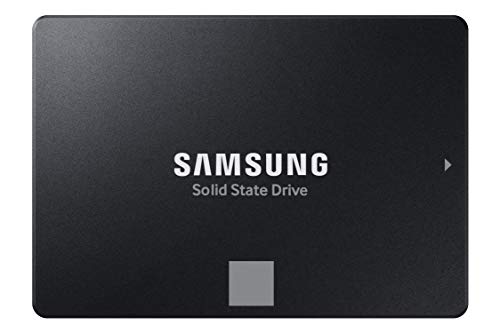
For users demanding uncompromising speed and professional-grade endurance, the Samsung SSD 870 EVO SATA III 2.5” 1TB stands as our top overall recommendation. Its dedicated DRAM cache, refined controller, and high TBW threshold make it the premier choice for demanding productivity workloads. It delivers class-leading sustained performance that fully saturates the SATA interface under heavy multitasking sessions.
Budget-conscious shoppers looking to revive an older computer will appreciate the balanced performance of the PNY CS900 500GB 2.5″ SATA III Internal SSD. It provides rapid boot times, low power consumption, and reliable daily operation at an entry-level investment. For expanded space without complex setup, the Crucial BX500 500 GB Solid State Drive serves as another outstanding value pick for routine office duties.
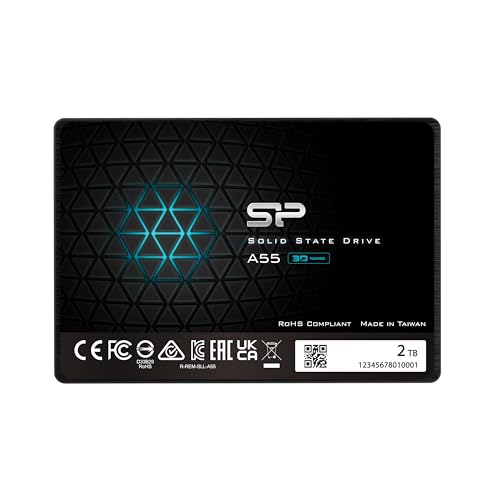
If your priority is maximum capacity for high-resolution media libraries or sprawling game collections, consider high-capacity alternatives. The Silicon Power 2TB SSD 3D NAND A55 SLC Cache offers massive storage volume backed by dynamic SLC caching technology. Be sure to explore our other detailed computing guides to discover additional ways to optimize your home office setup.
Frequently Asked Questions
What makes Best SATA SSDs a smart choice for older laptops in 2026?
Installing a SATA SSD replaces slow mechanical hard drives with silent, flash-based storage that operates up to five times faster. This simple upgrade revitalizes older laptops by cutting boot times from minutes to seconds and drastically improving responsiveness. It extends the functional lifespan of existing hardware without requiring a costly computer replacement.
How does a SATA SSD compare to an NVMe PCIe SSD in daily use?
SATA SSDs top out around 560 MB/s, while NVMe drives can exceed several thousand megabytes per second over PCIe lanes. However, during daily web browsing, office tasks, and casual gaming, the real-world difference in perceived speed is surprisingly minor. SATA SSDs remain the ideal solution for motherboards that lack dedicated M.2 NVMe slots.
Can I install a 2.5-inch SATA SSD into a standard desktop computer?
Yes, standard desktop computer cases feature dedicated 2.5-inch mounting trays or compatible 3.5-inch adapter brackets. All you need is a standard SATA data cable connected to your motherboard and a SATA power cable from your power supply. The physical installation takes just a few minutes and requires only a standard screwdriver.
Why is DRAM cache beneficial on Best SATA SSDs?
A dedicated DRAM chip stores the file allocation mapping table in high-speed temporary memory, speeding up file lookup times. This ensures steady responsiveness during intensive multitasking and prevents speed drops during prolonged file transfers. While DRAM-less drives are fine for secondary storage, drives with DRAM are best suited for your primary operating system.
What does the TBW rating indicate on a solid state drive?
Terabytes Written (TBW) indicates the total cumulative volume of data that can be written to the drive before memory cells degrade. Most consumer drives offer endurance ratings that easily support decades of normal daily computing without failing. A higher TBW score reflects superior flash memory quality and greater overall longevity.
Do Best SATA SSDs require special software to function properly?
No, modern operating systems like Windows, macOS, and Linux support SATA solid state drives natively right out of the box. However, installing optional manufacturer software like Samsung Magician allows you to monitor drive health and update firmware easily. These companion tools also provide convenient disk cloning utilities to transfer your old operating system effortlessly.
What is the difference between TLC and QLC flash memory?
TLC memory stores three bits per cell and delivers faster sustained write performance along with higher endurance ratings. QLC memory packs four bits per cell, which lowers manufacturing costs for large capacities but sacrifices write speed under heavy loads. For primary boot drives, TLC flash memory offers superior long-term reliability and responsiveness.
Will a SATA III solid state drive work on an older SATA II motherboard?
Yes, the SATA interface is completely backward compatible across all generation revisions from SATA I through SATA III. When plugged into a SATA II port, the drive operates reliably at the older bus limit of approximately 300 MB/s. Even at SATA II speeds, the SSD will feel dramatically faster than any mechanical hard drive.
How much free space should I keep on my solid state drive?
Experts recommend keeping approximately fifteen to twenty percent of your drive total capacity free for background housekeeping tasks. This empty space allows the drive controller to perform TRIM operations and wear-leveling routines efficiently without bottlenecking write speeds. Running an SSD at near maximum capacity can degrade write performance and increase cell wear over time.
Can I use a 2.5-inch SATA SSD as an external portable storage drive?
Yes, you can place any 2.5-inch SATA SSD into an inexpensive USB enclosure to create a fast, shock-resistant portable drive. This setup is perfect for transferring large video libraries, backing up important files, or expanding console storage. You can check our step-by-step guides for more details on external drive configurations.






Write Your Review
No reviews yet. Be the first to share your experience!